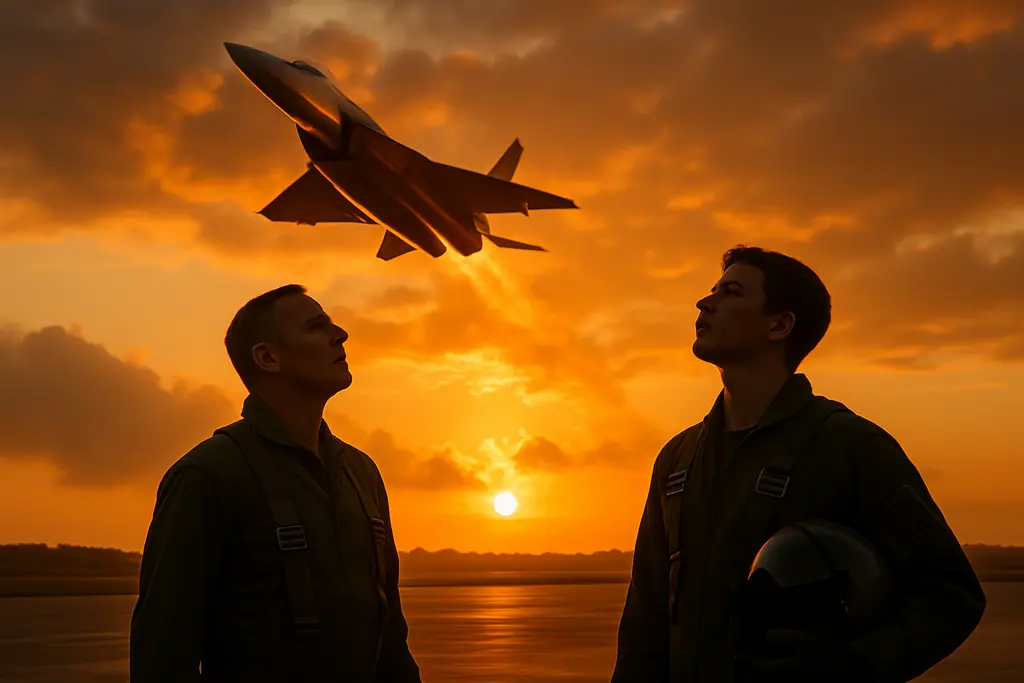
A useful Microsoft Flight Simulator 2024 setup starts with predictable controls, not a desk full of accessories. Microsoft’s controller settings guide, updated June 6, 2026, describes separate profiles for general commands, aircraft categories, and individual aircraft. That structure gives home-PC players a practical starting point: organize the equipment already connected before adding more.
For aviation hobbyists, the recommendation is to build around a session you enjoy repeating. A familiar virtual aircraft, readable cockpit view, and manageable control layout make a more useful starting brief than a shopping list. This guide concerns recreational simulation and software setup, not real-aircraft operating procedures or pilot qualification.
Start With A Repeatable Flight, Not A Hardware List
Microsoft’s accessibility documentation explains that Free Flight lets players choose an aircraft, departure and arrival locations, time of day, weather, and traffic visibility. Use those choices to create a simple reference session before experimenting with the desk around it.
Choose one aircraft you already have available and one short virtual route. Keep the weather and starting conditions consistent during setup checks. Give the session a narrow purpose, such as checking camera access or testing whether your most-used commands are within reach. This is a suggested troubleshooting routine, not a benchmark or flight lesson.
Repeating the same session makes your comparisons easier to interpret. If you change the aircraft, weather, display arrangement, and bindings together, you cannot tell which adjustment changed the experience. One alteration at a time leaves you with a clearer reason to keep or reverse it.
Write down the inconvenience you are trying to remove. Perhaps opening a menu requires moving the keyboard, or changing the camera means reaching past the joystick. Solve that specific problem before deciding that another piece of hardware belongs on the desk.
Give Every Controller A Clear Job
The simulator’s general bindings apply across aircraft; category bindings apply to types such as airplanes or helicopters; model-specific bindings apply to an individual aircraft. Profiles can be duplicated and renamed. The official guide documents a Search by input option and indicators for mapping conflicts.
A practical approach is to retain a known working profile and experiment with a clearly named copy. Use names that explain the purpose, such as a light-aircraft layout or a sightseeing layout. Avoid collecting nearly identical profiles that become difficult to distinguish later.
Before changing sensitivity, check what a troublesome button or axis actually controls. An unexpected response deserves a binding check before a hardware replacement. Microsoft places sensitivity adjustments under Hardware settings and instructs users to select the correct device and axis first.
Keep your own test notes brief: what you changed, what happened, and whether the result was better for your preferred activity. Do not copy someone else’s sensitivity values as a universal solution. Treat another player’s configuration as a proposal to evaluate, not an exact match for your equipment and preferences.
Treat Assistance Settings As An Experience Choice
Microsoft Flight Simulator 2024 provides assistance presets and individual customization. Its documentation distinguishes visual aids from mechanical assistance and realism settings. Many realism assists apply only in Free Flight and are forced off in Career mode, challenges, and certain other activities. Check the selected mode before assuming a setting will behave the same everywhere.
For a sightseeing session, choose the assistance level that lets you concentrate on the view. For a session focused on cockpit interaction, keep enough support to make the interface manageable. These are different entertainment goals, not competing claims about who is a more serious aviation enthusiast.
Change one assistance option at a time and notice what it adds to the session. Removing every aid at once is not a useful requirement for enjoying the simulator. An accessibility setting can remain part of a long-term setup; it does not need to become a temporary obstacle you promise to eliminate.
Make The Screen Layout Work Before Adding Displays
The simulator includes an Electronic Flight Bag, or EFB. Microsoft’s EFB introduction describes flight planning, airport charts, checklists, weather information, and aircraft-loading options. On a keyboard, Tab opens the EFB from the World Map or cockpit. Explore that built-in tool before deciding that your desk needs a separate physical tablet.
Assign each part of the workspace a purpose. Keep the main display for the virtual cockpit and scenery. Leave room to use the mouse and keyboard without moving other equipment. If you already use another screen, decide whether it should hold reference material or communication rather than filling it simply to create a busier cockpit appearance.
Readers interested in aviation hardware can explore PilotPointer’s cockpit tablet setup coverage. That article concerns tablets in aircraft; the desk arrangement here remains a recreational simulator setup, not aircraft-installation guidance.
For adults who use the same desk to watch football or compare football odds, give that browser activity a separate layout. Keep the simulator display organized around the virtual flight rather than unrelated tabs.
Try a simple usability check before buying another display: can you read what you need, open the EFB, change the view, and return to the cockpit without rearranging the desk? A specific failure gives the next adjustment a purpose.
Check Connectivity Before Judging The PC
Microsoft states that Flight Simulator 2024 requires a constant internet connection to stream content and cannot be used offline. Its official system requirements list bandwidth tiers of 10 Mbps minimum, 50 Mbps recommended, and 100 Mbps ideal. Those are published specifications, not a promise of a particular experience on every connection.
Treat network conditions as part of a setup check rather than assuming that every loading problem calls for a new graphics card. Record what the problem looks like: delayed scenery, an unresponsive menu, a disconnected peripheral, or uneven motion. Different symptoms deserve different investigations.
For a useful comparison, repeat the reference flight with the same aircraft and settings. Note any large downloads or streaming activity sharing the connection. Adjust one relevant setting, repeat the test, and keep the result in your notes. Avoid describing an improvement as a measured performance gain without a repeatable measurement.
The aim is to identify the source of an annoyance before spending money. A faster connection will not repair a mistaken button assignment, and changing a controller profile does not diagnose a network issue.
Measure Progress By Usability, Not Accessory Count
Try evaluating the setup across three sessions. Use the first to establish the reference flight and record interruptions. Use the second to test one change. Spend the third enjoying the virtual flight without deliberately adding another configuration task. This is an editorial suggestion, not a simulator requirement.
Then assess the result in ordinary terms. Did starting the session become simpler? Can you reach the controls you actually use? Did the change solve the problem written in your notes? Is the desk still convenient for everything else you do there?
Keep additions tied to answers. Another panel might be worth considering after repeated trouble with a particular interaction, but an unused space does not need to be filled. A satisfactory session can end with no purchase and no further adjustment.
For the next virtual flight, choose one aircraft, one purpose, and one manageable improvement. Leave the rest of the setup alone long enough to discover whether that change makes the hobby more enjoyable.